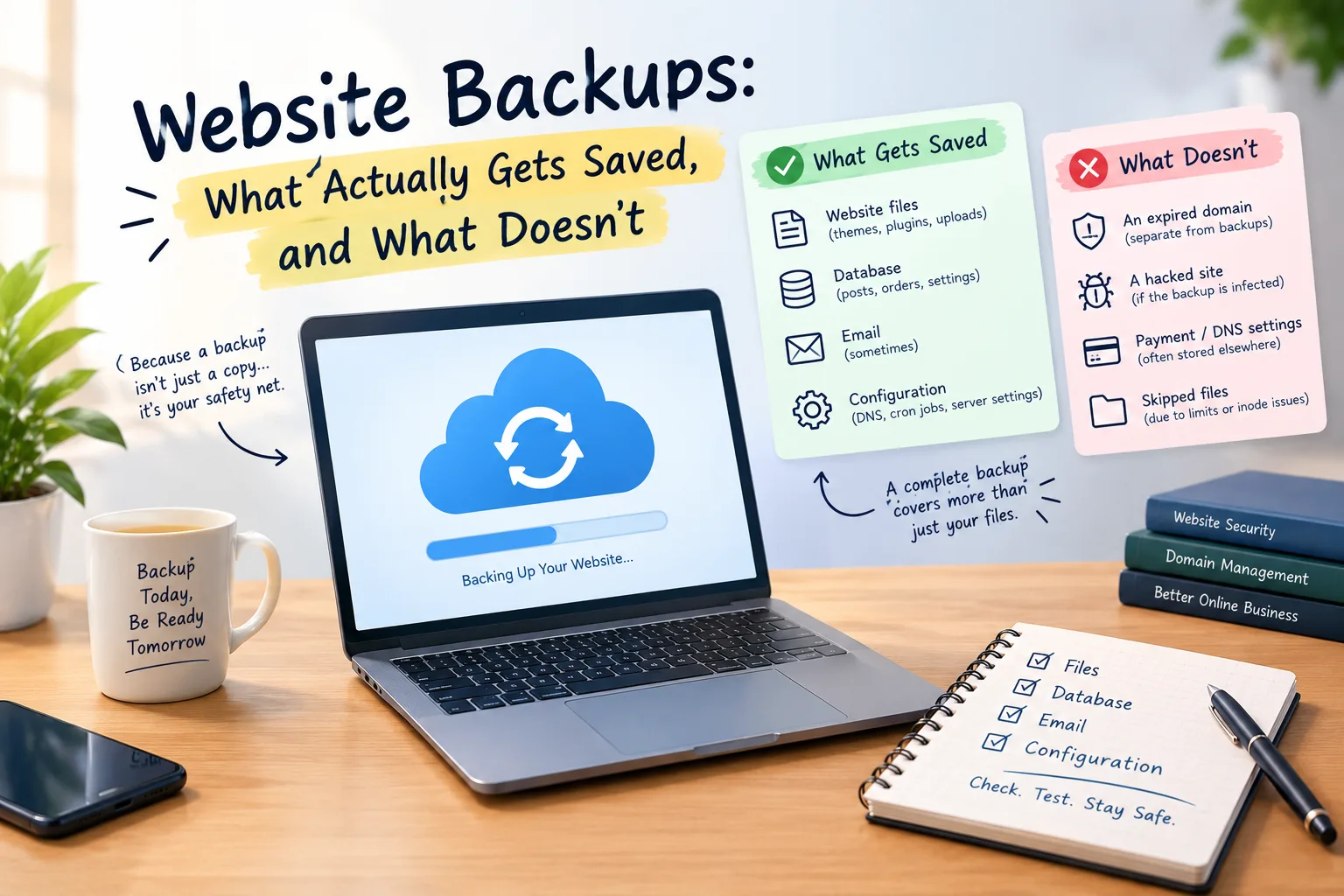
Website Backups: What Actually Gets Saved, and What Doesn't
Having a backup and having one that works are not the same. Many owners find the gap when they restore and discover missing images, lost orders or no database. Here is what a complete backup covers, and what it never will.
Having a website backup sounds reassuring. You know there's a copy somewhere, so if something goes wrong, you can simply restore it. There's a problem: having a backup and having one that works are not the same.
Many website owners discover this when their website breaks. They restore a backup but find missing images, lost recent orders, or even no database. Sometimes the backup was stored on the same server that caused the original problem.
A complete website backup should cover more than just the visible pages. It usually includes website files, the database, and other key data your site needs. Email, DNS records and server settings may need separate backups. Knowing what's included can save you a lot of trouble later.
What Should a Website Backup Include?
Think of your website as a collection of different parts. Each one has a different job, and losing any important part can cause problems.
A proper backup should consider these four areas:
- Website files: Your application files, themes, plugins, images, documents and uploaded media.
- Database: Posts, pages, product details, customer accounts, orders, comments and website settings.
- Email: Mailboxes and stored messages, if your email service is part of the hosting account.
- Configuration: DNS records. Scheduled tasks. Server settings. Other info to restart everything.
Not every hosting backup includes all four. That's why checking the backup scope matters.
Files and Database Are Two Different Things
This is one of the easiest mistakes to make.
Your website files and database work together, but they aren't the same thing.
Imagine restoring your WordPress files without the database. You can get the application, themes, and plugins back. But your posts, pages, and website settings will be gone.
Now imagine restoring only the database. Your content might be available. However, the theme, plugins, and uploaded images could be missing.
Neither copy is enough on its own.
To have a good website backup, you need both the files and the database from the same time. This is especially important for online stores. Orders and customer info can change daily.
What Does "Hosting Includes Backups" Actually Mean?
When a hosting company says backups are included, it's worth asking a few questions before relying on that promise.
| What to check | Why it matters |
|---|---|
| How often backups run | Daily backups and weekly backups leave different gaps in your data. |
| How long they're kept | Short retention may not help if a problem goes unnoticed for weeks. |
| Where they're stored | A separate location protects against problems affecting the hosting server. |
| Whether restores cost extra | Some services charge for restoring data. |
| Single-file restoration | Useful when you only need one deleted file or folder. |
| Email inclusion | Website backups don't always include mailboxes. |
| Account limit handling | Backups may fail or skip data when storage or inode limits are reached. |
Don't stop at the words "daily backup". Find out when the last successful backup ran and whether you can actually restore it.
Why Keeping a Backup on the Same Server Is Risky
A backup on the same server as your website offers little protection. If that server goes down, you could lose everything.
For example, your hosting account could be suspended, compromised or accidentally deleted. A hardware problem could also affect both the live website and its backup.
That's why keeping an off-site copy matters.
An off-site backup is stored somewhere separate from the hosting account. If something happens to your main server, the extra copy will still be available.
You don't necessarily need a complicated setup. At least one backup should be stored in a place your hosting account can't impact.
Backups Can Also Use Up Inodes
Backups use storage, but website owners often miss another limit: inodes.
An inode limit controls how many files and folders an account can contain. An uncompressed backup of a website can copy thousands of files.
This can be a problem for websites with big media libraries, cache folders, or many backup copies.
If you've received an inode warning, read What Are Inodes? before creating more backup folders. It shows why an account can hit its file limit, even if it looks like there's plenty of storage left.
How Long Should You Keep Backups?
Running backups frequently is useful, but retention matters just as much.
Suppose your hosting account keeps only seven days of backups. A plugin update introduces a problem, but you don't notice it until three weeks later.
By that time, every available backup may already contain the same problem.
This is why keeping only the latest copy isn't always enough.
A practical backup plan can include:
- Recent daily copies for quick recovery.
- Weekly copies kept for a longer period.
- Occasional monthly copies for longer-term protection.
The exact schedule depends on how often your website changes.
A personal blog that posts weekly needs different backups. In contrast, a busy online store takes orders every few minutes.
The Restore Test: Does Your Backup Actually Work?
A backup that has never been tested is still an assumption.
You may see a backup success message in your hosting panel. But that doesn't mean every important part can be restored.
Test a restore when your website is running well. Don't wait for an emergency.
You can use a staging environment or a separate local setup. Restore the backup and check:
- Do the website files appear correctly?
- Are the database, posts and settings present?
- Do images and uploaded documents load?
- Are important plugins and themes working?
- Is email available if it was supposed to be included?
- If it's an online store, are product details and order records there?
Don't experiment on your live website without a safe recovery plan. The purpose of this test is to find problems before they affect visitors.
What Website Backups Don't Protect You From
Backups are important, but they don't solve every website problem.
An expired domain: You may have a backup of your website, but you can still lose access if the domain expires. Read What Happens When a Domain Expires? to understand why domain renewal needs attention too.
A compromised backup: If malware gets into your website, your system might keep backing it up. This can lead to saving infected copies. Keeping older versions can help you find a clean restore point.
External settings: Payment gateways and third-party services can store key settings. DNS records are also considered settings. They might be outside your hosting account, so a regular website backup may not cover them.
Skipped files: Large files, account limits, or inode limits can cause backups to skip data. They may also fail. Check the backup report rather than assuming everything was saved.
Your hosting setup also affects how backups are handled. When choosing infrastructure, you have options. Shared Hosting vs VPS vs Dedicated shows how each type is different, and each has its own backup features.
A Simple Website Backup Checklist
Before relying on your hosting backup, make sure you can answer these questions:
- How frequently does the backup run?
- How many days or weeks are copies retained?
- Is at least one copy stored off-site?
- Are both website files and the database included?
- Does the backup include email?
- Can you restore individual files?
- Is there an additional restore charge?
- What happens when storage or inode limits are reached?
- When did the last successful backup run?
- Have you tested a restore recently?
If you can't answer these questions, check your hosting panel or contact support.
The Bottom Line
A website backup isn't just a folder containing copies of your files. It should give you a realistic way to bring your website back after something goes wrong.
For that, you need the files, database and any other important data your website depends on. You also need copies saved away from the live hosting account. Plus, make sure to test the restore process.
Don't wait until your website stops working to find out what's missing. Check your backup settings now, while everything is still running normally.
Provider Disclaimer
This article is for general educational and informational purposes. Provider and product names are mentioned only as examples. They are not endorsements or recommendations. Providers differ in their backup features, retention periods, storage locations, and restoration policies. These can also change over time. Nobody pays to be named here.
Common questions
What should a website backup include?
A complete website backup should normally include website files and the database. Your setup might need several things. It could require email. You may also need DNS records, configuration files, and scheduled tasks. The exact requirements depend on the platform and hosting environment. Always check what's included instead of assuming the backup covers everything.
Is a file backup enough without the database?
Usually, no. Website files include themes, plugins, and uploaded media. The database holds content, settings, users, and other information. Restoring files without the database may leave you with an incomplete website. For a proper recovery, you generally need both parts from a compatible backup.
Does my host back up my website?
Some hosting providers have automatic backups. Others offer them as an extra service. Backups can differ. They may have different frequencies, retention periods, and restore options, even when included. Check your hosting panel or plan details. This will help you see if files, databases, and email are included.
How often should a website be backed up?
It depends on how frequently your website changes. A simple blog can use daily backups. But an online store that gets regular orders might need backups more often. Choose a schedule. This will help lower the risk of losing recent information if problems happen.
How long should I keep backups?
Keeping only a few recent copies may not be enough. Some website issues can go unnoticed. Malware and database corruption are examples. They might stay hidden for weeks. Daily, weekly, and monthly backups offer you better recovery choices. Choose retention based on how important your data is and how often it changes.
Where should backups be stored?
At least one backup should be stored separately from your live hosting account. If your server is down, hacked, or deleted, you can still access a separate copy. Storing all backups on the same server is risky. If something happens, it can harm both your website and its recovery copies.
Do backups include email?
Not always. Some hosting backups include email accounts and messages. Others only cover website files and databases. If you use hosting-based email for business communication, check this separately. You might need another email backup. This way, you won't lose important messages during a website restoration.
Do backups count towards my inode or storage limit?
They can. Backup archives take up storage space. Uncompressed backup folders can hold thousands of individual files. This can increase inode usage as well. Check your hosting account for storage limits. Look into how backups are stored. Also, see if old copies are deleted automatically.
How do I test that a backup actually works?
Restore a copy to a staging environment or local setup. Don't experiment on your live website. Ensure the files and database are there. Check that images load and key features work. If email is included, verify that too. A successful backup message alone doesn't prove that restoration will work.
Can a backup restore a hacked website?
It can help, but only if you have a clean backup from before the compromise. Restoring a backup of your website that was saved after it was hacked could cause the same issue again. Keep older versions and investigate the cause of the compromise before restoring.
What is the difference between a backup and a snapshot?
A backup is a stored copy of data that can be used for recovery. A snapshot captures the state of a system or storage volume at a particular moment. Snapshots can help you roll back quickly. But they may rely on the same infrastructure. Neither should automatically replace an independent backup.
Do I need paid backup software?
Not necessarily. Your hosting plan may already include the backup features your website needs. Paid software offers extra scheduling, storage, or restoration options. But first, check what you already have. The key isn't if the tool costs money or not. It's about having backups that are complete, separate, and restorable.