
How Much RAM and CPU Does a VPS Actually Need?
For most small websites, 1–2 GB of RAM is a reasonable starting point, and a busier WordPress site may be more comfortable with around 4 GB. But the right VPS size depends on what the server is actually doing, not on the biggest plan you can afford.
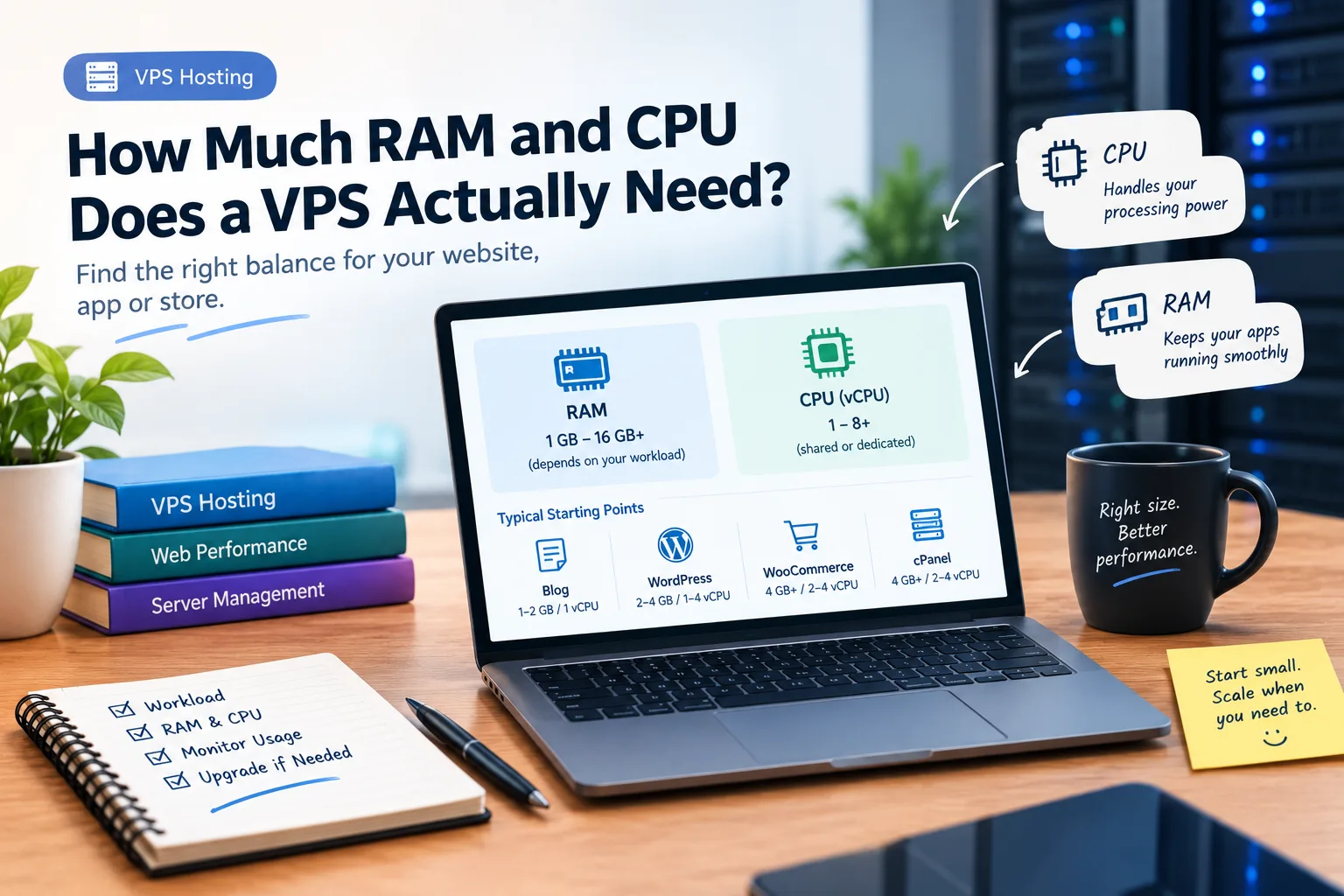
For most small websites, 1–2 GB of RAM is a reasonable starting point, while a busier WordPress site or several websites on one VPS may be more comfortable with around 4 GB. Database-heavy applications, busy online stores and more demanding workloads can need considerably more. CPU needs vary in much the same way, with many smaller sites starting around 1–2 vCPU and heavier workloads needing more.
These are starting points, not fixed requirements. A lightweight website can run comfortably on a small VPS, while a poorly optimised site can struggle on a much larger one. The right size depends on what the server is actually doing.
That is why choosing a VPS should not start with "What is the biggest plan I can afford?" It should start with "What workload am I running?"
A Simple VPS Sizing Guide
The table below gives typical starting points rather than guarantees.
| Workload | Typical starting RAM | Typical starting vCPU |
|---|---|---|
| Static site / small blog | 1 GB | 1 vCPU |
| WordPress, low traffic | 2 GB | 1–2 vCPU |
| WordPress, higher traffic / several sites | 4 GB | 2–4 vCPU |
| WooCommerce store | 4 GB | 2–4 vCPU |
| VPS with cPanel | 4 GB | 2–4 vCPU |
| Database-heavy application | 8 GB+ | 4+ vCPU |
A starting point is exactly that: a place to begin.
Traffic, plugins, database size, caching, software configuration and simultaneous visitors can change the amount of memory and CPU your application needs.
If you're coming to this question after comparing VPS prices, it is worth reading What Does a VPS Actually Cost? because the cheapest VPS is not necessarily the cheapest setup once management, backups and software licences are included.
Is 2 GB RAM Enough for a VPS?
Sometimes, yes.
A 2 GB VPS can be perfectly reasonable for a small WordPress website with modest traffic and a sensible configuration. It can also be enough for a lightweight application that does not use much memory.
But there is an important catch.
The RAM is not available entirely to your website.
The operating system needs memory. Your web server needs memory. PHP workers need memory. A database such as MySQL or MariaDB needs memory. Caching and other services may use more.
If you install a control panel, that also adds another layer of software that needs resources.
So when a VPS plan says 2 GB RAM, don't think of it as "2 GB available for WordPress". Think of it as the total memory available to the entire server.
That difference is easy to miss when comparing plans.
Where Does VPS RAM Actually Go?
A VPS is running much more than your website.
A typical web server may have memory allocated to:
- The operating system
- Web server software
- PHP and its workers
- MySQL or another database
- Caching services
- Control panels
- Security and monitoring tools
- Your actual application
This is why two websites with the same number of visitors can have very different RAM requirements.
One might be a simple blog with a lightweight theme and aggressive caching.
Another might run WooCommerce, several plugins, background jobs and a large database.
The second site may need considerably more memory even if both websites receive similar traffic.
What About CPU?
RAM and CPU solve different problems.
RAM is mainly about how much information and how many processes the server can keep available in memory.
CPU is about how much processing work the server can perform.
A website can therefore have plenty of RAM and still be slow because the CPU is busy.
For example, generating dynamic pages, processing database queries, running background tasks or handling many simultaneous requests can increase CPU usage.
This is where vCPU count becomes relevant.
vCPU Does Not Always Mean a Physical CPU Core
A vCPU is a virtualised CPU resource. It does not automatically mean your VPS has one complete physical CPU core reserved exclusively for you.
Some VPS environments use shared CPU resources, while others offer dedicated CPU resources.
That difference can affect performance under sustained workloads.
The VPS cost guide explains the difference between shared and dedicated vCPU in more detail, so there is no need to judge a VPS simply by looking at the number beside "vCPU".
For sizing, the useful question is not just:
"Does this plan have 4 vCPUs?"
It is:
"How are those vCPUs provided, and does that performance match my workload?"
How Do You Know If Your VPS Needs More RAM?
You do not need to guess forever.
Once the VPS is running, resource usage gives you a much better picture.
One common warning sign is heavy use of swap. Swap allows the system to use storage when physical RAM is under pressure. Some swap use is not automatically a disaster, but sustained or heavy swapping can indicate that the server does not have enough memory for its workload.
Other signs can include:
- Out-of-memory (OOM) errors
- MySQL or another service being killed unexpectedly
- Slowdowns during traffic spikes
- Processes failing because memory is unavailable
- Memory consistently staying close to the server's limit
On a Linux VPS, commands such as free -m and htop can provide a basic view of memory and process usage.
For example, free -m can show memory and swap information, while htop can help you see which processes are consuming resources.
These commands are diagnostic examples, not magic fixes. Seeing high memory usage does not automatically mean "buy more RAM". You still need to understand which process is using it and why.
What If CPU Is the Problem?
The same principle applies to CPU.
If CPU usage regularly reaches the VPS limit during normal traffic, you may need additional processing capacity.
But first find out what is consuming it.
A plugin, inefficient application code, database query or scheduled task can sometimes create a CPU problem.
Increasing the VPS size may hide that problem temporarily without fixing its cause.
This is particularly important for WordPress. If a site suddenly becomes slow after installing a plugin or changing a theme, investigate that change before assuming the VPS is too small.
Don't Buy More RAM to Fix Every Slow Website
More resources are not always the answer.
A slow website can be caused by large images, unnecessary plugins, poor caching, heavy JavaScript, slow database queries or third-party scripts.
If the server has plenty of free memory and CPU but the page still takes several seconds to load, adding another 4 GB of RAM is unlikely to solve the real problem.
Our guide on whether your site is slow because of hosting covers this distinction in more detail. It explains how to separate server-side problems from issues inside the website itself.
This is one of the most important things to understand before upgrading.
A bigger VPS is not a substitute for website optimization.
What About WordPress?
For a small WordPress installation, 1–2 GB can be a sensible starting point.
But WordPress itself is only part of the equation.
Your theme, plugins, PHP workers, database and traffic all affect resource consumption.
A basic blog with caching and a small number of lightweight plugins may be comfortable on a small VPS.
A busy WooCommerce site with many products, logged-in customers, background jobs and database activity is a very different workload.
That is why there is no honest answer such as "WordPress always needs 2 GB".
It depends on what the WordPress installation is doing.
What About WooCommerce?
WooCommerce generally deserves more headroom than a basic brochure site or small blog.
An online store may have product queries, customer sessions, carts, checkout activity, payment integrations, background tasks and database operations happening at the same time.
A 4 GB RAM / 2–4 vCPU starting point can make sense for some smaller stores, but actual requirements depend heavily on traffic and configuration.
A store with a large catalogue and significant concurrent activity may need more.
The right approach is to monitor the server rather than choosing a number based only on the word "WooCommerce".
Should You Start With a Bigger VPS?
Usually, you should start sensibly rather than buying far more resources than you need.
Many VPS environments allow you to upgrade RAM, CPU or other resources later.
That means you can begin with a reasonable configuration, monitor actual usage and increase capacity when the evidence shows that you need it.
There is little value in paying for 16 GB of RAM if the server consistently uses only a fraction of it.
At the same time, running permanently at the limit is not a good strategy either.
You need enough headroom for traffic spikes, updates and normal changes in workload.
What About Inodes and Storage?
RAM and CPU are not the only resources worth watching.
A VPS can have plenty of RAM and still run into another limit.
For example, a website can accumulate a huge number of files through email, backups, cache directories, WordPress media or development dependencies.
These are measured as inodes, not simply gigabytes of storage.
Our guide on what inodes are and why hosts warn about them explains why a server can have free disk space while still approaching an inode limit.
The lesson is broader than inodes: check the actual resource that is running out before upgrading everything.
When Should You Increase RAM or CPU?
An upgrade makes sense when monitoring shows a genuine resource constraint.
For example, consider increasing RAM when:
- Memory remains consistently near its limit
- Swap usage is repeatedly high
- OOM events occur
- Important services are being killed because of memory pressure
- Traffic increases and the existing memory no longer provides enough headroom
Consider increasing CPU when:
- CPU remains heavily loaded during normal operation
- Requests slow down during periods of higher activity
- Processing-heavy tasks regularly consume available CPU
- Optimisation has already removed obvious application bottlenecks
If neither resource is consistently constrained, a larger VPS may not improve anything.
A Practical Way to Choose Your VPS Size
Instead of trying to predict your exact requirements before launch, use a simple process:
Start → monitor → identify the bottleneck → optimise → upgrade if necessary.
For a small site, that might mean starting around 1–2 GB RAM and 1–2 vCPU.
For a busier WordPress installation, 4 GB and 2–4 vCPU may provide a more comfortable starting point.
More demanding applications can start higher.
These are not provider recommendations or guarantees. They are workload-based starting points.
If you are still deciding whether VPS hosting is actually the right level of infrastructure, the Shared Hosting vs VPS vs Dedicated guide explains how the three options differ.
The Bottom Line
There is no single RAM or CPU number that every VPS needs.
For many small sites, 1–2 GB RAM is enough to start. Around 4 GB can be a more practical starting point for busier WordPress sites, several websites or smaller online stores. Database-heavy applications and demanding workloads may need 8 GB or more.
CPU follows the same principle. Start with enough processing capacity for the workload, then watch what the server actually does.
Most importantly, don't upgrade simply because your website feels slow.
Check memory, CPU, swap, database activity and application behaviour first. If the server is healthy but the website is slow, the solution may be caching, image optimisation, plugin cleanup or code changes instead.
The best VPS size is not the biggest one. It is the smallest configuration that comfortably handles your real workload with enough room for normal growth.
Provider Disclaimer
Provider names mentioned in examples are for illustration only, not recommendations. Nobody pays to be named here.
Common questions
Is 2 GB RAM enough for a VPS?
It can be enough for a small WordPress site, low-traffic website or lightweight application. The actual requirement depends on the operating system, web server, database, plugins, traffic and other services running on the VPS.
How much RAM does a WordPress VPS need?
A small WordPress website can often start around 1–2 GB RAM. Busier websites, multiple installations and more demanding plugins may be better suited to around 4 GB or more.
How many vCPUs does WordPress need?
A small WordPress site can often start with 1–2 vCPU. Higher traffic, multiple sites, complex plugins and database activity can increase CPU requirements.
Is 4 GB RAM enough for WooCommerce?
It can be a reasonable starting point for a smaller WooCommerce store. Larger catalogues, higher traffic, more concurrent users and background processing can require additional memory and CPU.
Does cPanel need extra RAM?
Yes. cPanel adds software and services to the server, so its resource requirements need to be considered alongside your website and database. A VPS running cPanel should not be sized as though the entire RAM allocation belongs to the website.
How do I know if my VPS needs more RAM?
Look for consistently high memory usage, heavy swap activity, OOM errors or services being stopped because of memory pressure. Commands such as free -m and htop can provide basic diagnostic information on Linux systems.
Can more RAM make a slow website faster?
Only if insufficient RAM is actually causing the slowdown. If the problem is large images, poor caching, inefficient plugins or slow application code, adding RAM may have little effect.
What is more important for a VPS, RAM or CPU?
Neither is universally more important. RAM matters when the workload needs more memory, while CPU matters when processing capacity is the bottleneck. The correct balance depends on the application.
Does more vCPU always mean better VPS performance?
No. vCPU is a virtualised resource, and the underlying CPU allocation can differ between VPS environments. Shared and dedicated CPU resources can behave differently under sustained workloads.
Should I buy a larger VPS from the beginning?
Not necessarily. Starting with a sensible configuration and monitoring actual usage can be more cost-effective. You can increase resources later if your workload consistently needs them.
What happens if a VPS runs out of RAM?
The operating system may start using swap, processes can become slower, and in severe cases services may be terminated because of memory pressure. The exact behaviour depends on the operating system and configuration.
Can a VPS have enough RAM but still be slow?
Yes. CPU limits, database problems, network conditions, poor caching, large assets and inefficient application code can all cause slow performance even when plenty of RAM is available.